Notifications
Clear all

Hey All,
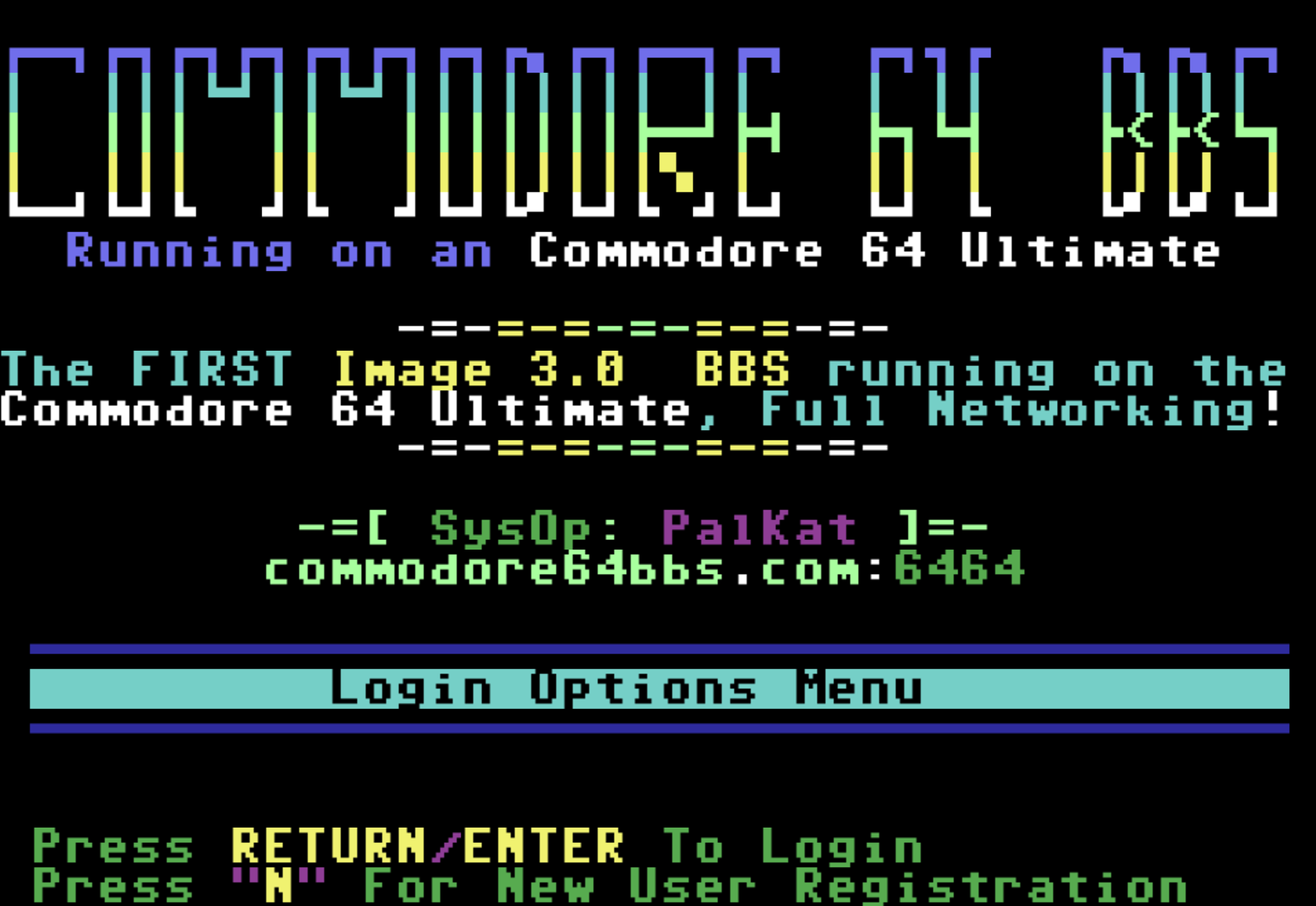
So you just got a shiny new Commodore 64 Ultimate and are super excited to dive back into the BBS scene. Let’s get you to the commodore64bbs.com on port 6464 — it's extra cool because it's the first one actually run on and hosted on a Commodore Ultimate!
A quick note about the BBS itself:
Hosting a classic Commodore BBS on modern hardware like the Ultimate is still in its very early stages. The sysop had to do quite a bit of tweaking to get the old, finicky BBS software working properly over a network connection instead of a real modem. Things like timing, handshaking, and how the software expects a traditional serial connection don't always play nice with TCP/IP bridging. So if you notice occasional quirks, slower responses, or minor glitches during your visit, please be patient — it's all part of the fun of running authentic 1980s/90s software on brand new hardware. The sysop is actively working on improvements!
Here’s how I got connected (works great on Ethernet or WiFi once your networking is set up):
1. Turn on your Commodore 64 Ultimate
- Plug in power, video, and your network cable (Ethernet is easiest and most reliable for beginners; WiFi works too after you configure it in the Ultimate menu).
- Power on the machine. You’ll boot to the familiar C64 BASIC screen or the Ultimate quick menu.
2. Access the Disk File Browser (USB Stick ... cassette)
- Press the Ultimate menu button (the multi-function/power button on the machine) briefly to bring up the Ultimate menu if needed.
- Navigate to your USB stick (usually shows up as USB1 or similar).
- Enter the BBS folder on the USB.
- Inside you'll see the Ultimateterm files, including a "run me first.cfg" (or similar config file) and the main Ultimateterm D64 image.
3. Run the Configuration (Recommended First)
- Select and run the config file first (runmefirst.cfg).
This sets up networking, modem emulation (SwiftLink/ACIA style at DE00/NMI), and other needed settings for Ultimateterm. It only takes a few seconds.
- After it finishes, reset or reboot if prompted (or just proceed).
Important note for tinkerers:
If you don’t want the config file to change your current setup, you can skip it and manually configure instead (see the "Manual Modem Setup" section at the bottom). Many people prefer the config because it’s quick and reliable.
4. Load and Run Ultimateterm
- Go back into the BBS folder.
- Select the Ultimateterm D64 image and mount/run it (choose "Run Disk" or the equivalent option).
- The terminal program should load. Give it a moment — it may show a splash or main menu.
5. Dial the BBS
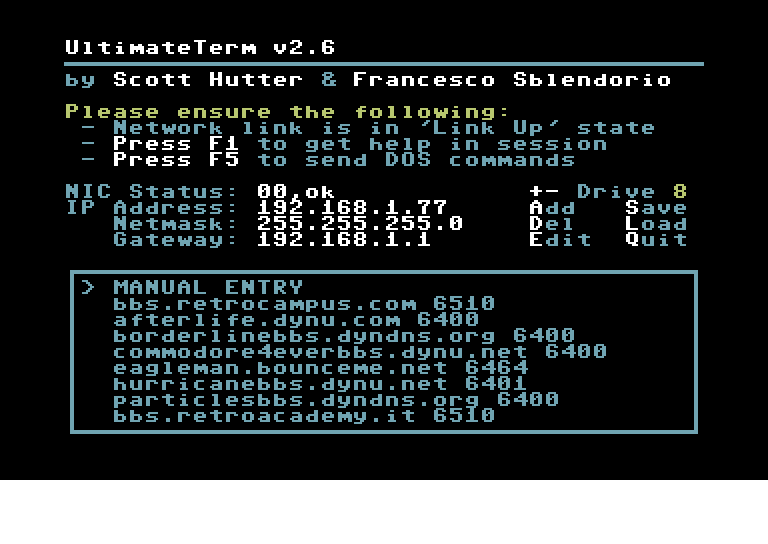
- In Ultimateterm, look for the BBS dialing or connection option (in a menu accessed by choice 1).
- In Manual Entry mode at the bottom enter the Host exactly like this:commodore64bbs.com
then for port: 6464
- Hit Enter/Return to "dial".
- If everything is set up right, you should connect and see the welcome screen of the BBS in beautiful PETSCII!
-If it's your first time hit "N" to sign up.
6. Updating the Ultimateterm Dialing Directory (Phonebook)
Once you're comfortable with the program, you'll want to add your favorite BBSes (including commodore64bbs.com:6464) to the built-in dialing directory so you don't have to type the address every time.
- In Ultimateterm, go to the dialing/address book menu by pressing A for "Add" from the main terminal screen.
- Select the option to Add a new entry.
- Enter Host and Port (commodore64bbs.com:6464) like before and then return and the entry will be added to the list
- You can now browse your dialing directory and select the entry with a single keypress
Once connected, just follow the on-screen prompts to browse files, read messages, etc. It feels just like the old days!
Troubleshooting Tips
- Make sure your C64 Ultimate has network access (check the Ultimate menu → Ethernet/WiFi status — it should show connected and an IP address).
- If you get no response or "NO CARRIER", double-check the port number and host spelling
- Ultimateterm is tuned for PETSCII BBSes, so colors and graphics should look correct.
- Still stuck? Try a different terminal like CCGMS Future (also included)
Manual Modem Emulation Setup (If You Skip the Config File)
If you prefer full control:
1. Enter the Ultimate configuration menu.
2. Go to Modem Settings and enable the ACIA/SwiftLink emulation (usually at DE00 with NMI).
3. Disable any conflicting cartridges (like Retro Relay if it's enabled by default).
4. In your terminal program, set modem type to SwiftLink / Turbo DE (or equivalent) and a compatible baud rate (19200 or 38400 works well).
5. Then use ATDT commodore64bbs.com:6464 to dial.
6. Make sure Command Interface is enabled
That’s it! Within a few minutes you’ll be chatting on a BBS that’s literally running on the same hardware family as your machine. Feels pretty special.
If you run into any snags (especially with the early-stage BBS quirks or the dialing directory), drop a reply — happy to help other new Ultimate owners get online. Let’s keep the Commodore BBS scene alive!
-Sutehk
Topic starter
Posted : 27/04/2026 3:20 pm