Notifications
Clear all

Hey everyone,
If you’re running GDOS64 (Markus Kanet’s current evolution of the MegaPatch3 / GeoDOS / GeoDesk line also in our download section) on an Ultimate 64, Turbo Chameleon, or real C64 hardware with a CMD Hard Drive, sd2iec, uiec/sd or RAMLink, you’ve got a lot of storage power. But treating that big device as one giant single partition gets cluttered fast. Partitions fix that — and GDOS64 makes switching between them genuinely easy and visual.
Why change partitions?
Here are the practical reasons it’s worth doing:
- Stay organized — Put your core GEOS system on one partition, all your applications on another, and use large Native partitions for documents, geoPaint images, projects, and archives (with full subdirectory support). No more digging through hundreds of files in one root directory.
- Right tool for the job — Use 1581-emulation partitions for maximum compatibility with older software or when you want classic disk-like behavior. Use Native partitions when you want maximum capacity and modern features like subdirectories.
- Multiple workspaces — Quickly switch between a clean daily-driver setup, a big creative project partition, a test/experimental area, or an archive partition. It feels like having several dedicated drives without any physical swapping.
- Backup & safety — Much easier to back up or image individual partitions. Want to experiment? Jump to a spare partition instead of risking your main setup.
- Modern hardware advantage — On RAMLink (with its multiple partitions + large Native option), CMD clones, or large SD setups, partitions turn that capacity into something clean and usable. GDOS64’s improved driver handling makes the whole experience smooth.
In short: partitions give you the flexibility of multiple disks with none of the old hassle, and GDOS64 finally makes it pleasant to use.
How to change partitions in GDOS64 – super easy from the desktop
GDOS64 builds on MegaPatch’s excellent CMD/RL support and puts partition switching right where you want it: on the deskTop itself.
From the GDOS desktop screen (the most convenient daily method):
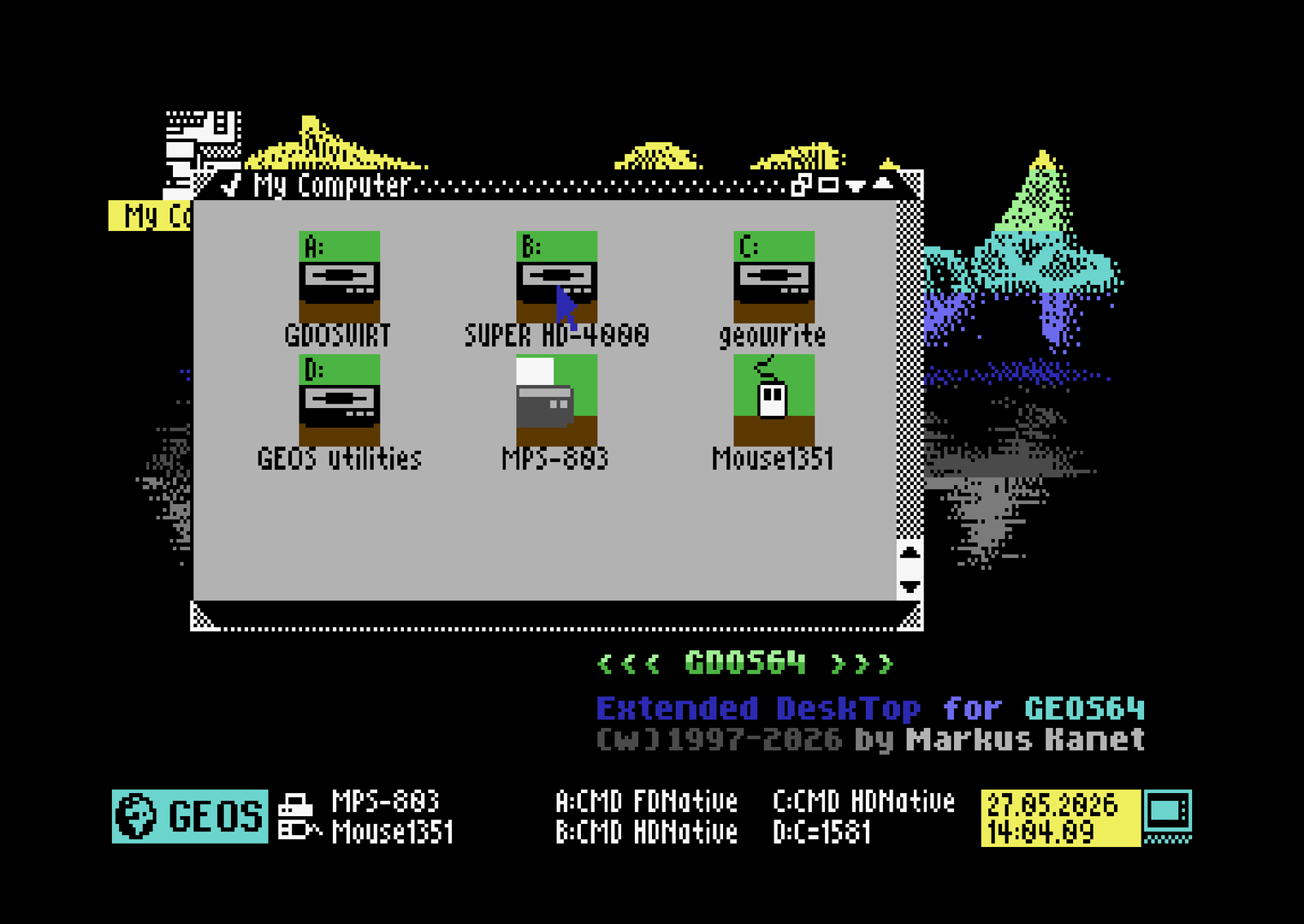
- Boot into GDOS64. You’ll see your drive icons on the deskTop (A:, B:, C:, etc.). These represent your physical or virtual drives.
- Locate the disk/drive icon for your CMD HD or RAMLink device (the one that has multiple partitions).
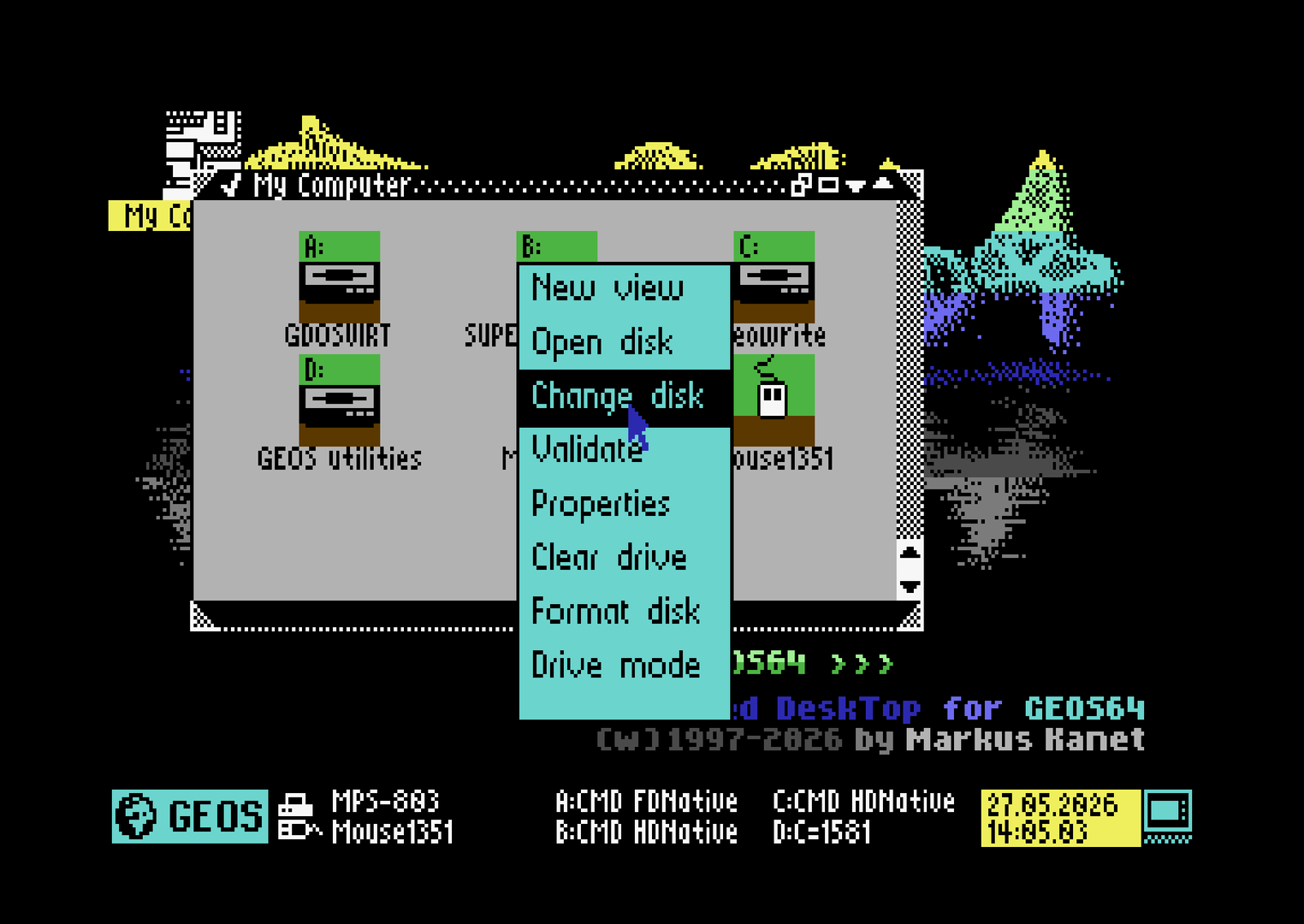
- Right-click directly on that disk icon.
- A context menu appears with device-specific options.
- Choose Change Disk.
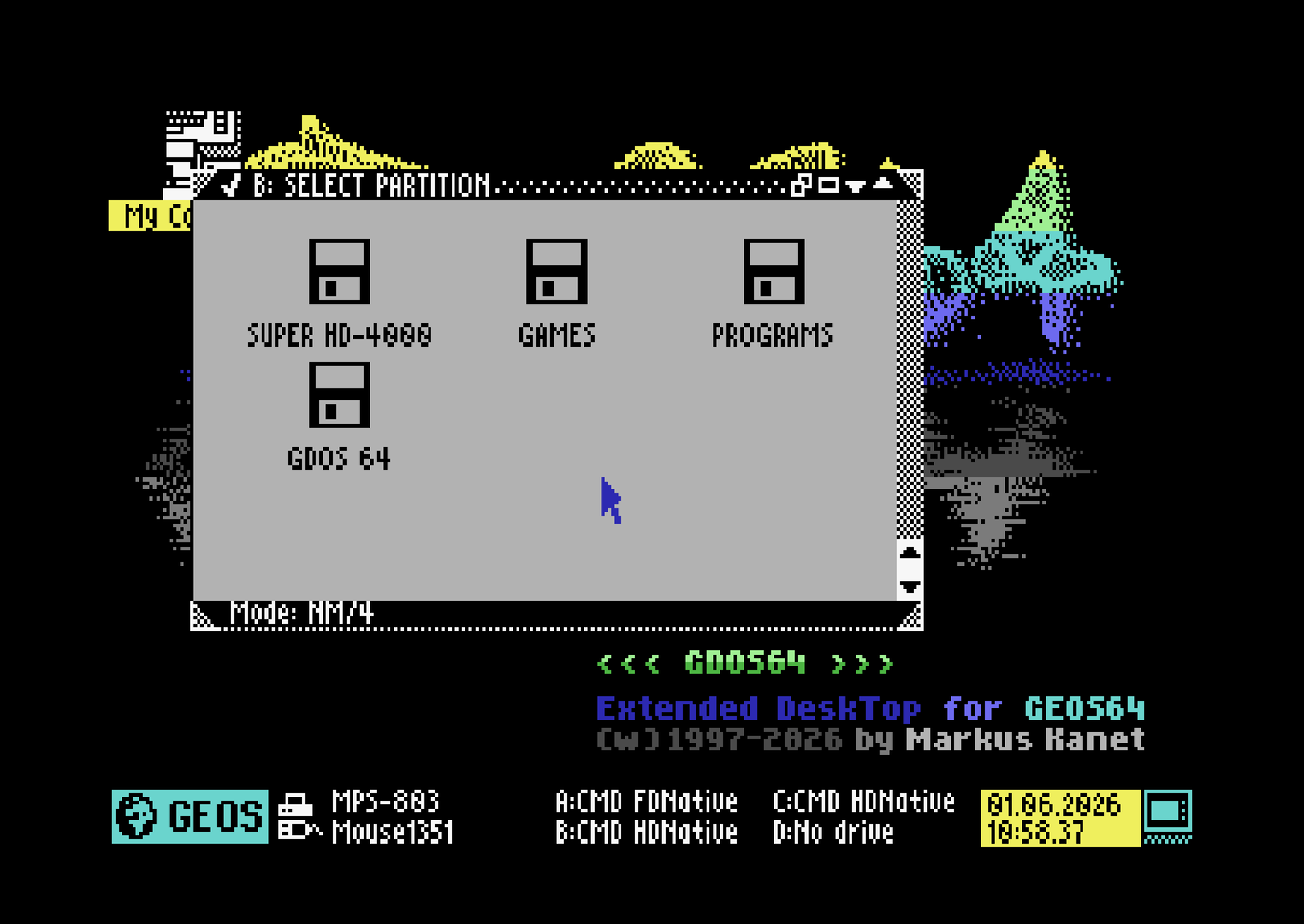
- A window showing the available partitions on that device appears. Pick the one you want.
- Confirm. The drive icon now points to the new partition. Double-click the icon to open its directory and you’re immediately working in the new partition. No reboot needed.
This right-click method on the deskTop disk icons is fast, visual, and stays completely within the GUI — perfect for how most people use GEOS/GDOS day-to-day.
Alternative quick way (still inside GDOS64):
- Open any file requester (Open/Save in geoWrite, geoPaint, the file manager, New Document dialog, etc.).
- Select the drive letter for your CMD/RL device.
- Click the DISK icon in the requester.
- Choose your desired partition from the list.
- The requester now shows the contents of the new partition.
Both methods are seamless thanks to the work Markus has done on these patches.
One-time setup notes:
- Make sure your drive is assigned the correct type in CONFIGURE (CMD Native or the emulation mode you want) if it isn’t already automatic in GDOS64.
- You create the actual partitions once using the CMD DOS utilities or tools that came with your drive (outside of GEOS). After that, switching is all done from the nice GDOS desktop.
Do you need JiffyDOS?
Short answer: No, you do not need JiffyDOS to change partitions in GDOS64. The right-click method on the deskTop disk icons and the DISK icon in file requesters work fine with GDOS64’s own enhanced drivers.
Why you’ll probably still want JiffyDOS anyway:
- It makes everything on the serial bus dramatically faster — loading apps, copying large files between partitions, saving geoPaint images, etc. This speed difference is very noticeable with CMD HDs and RAMLink.
- It adds convenient wedge commands that are useful even if you rarely drop to BASIC.
- Better overall compatibility and reliability with fast storage devices.
- On an Ultimate 64 it’s trivial to enable and pairs perfectly with GDOS64.
- Most power users in the GEOS scene run JiffyDOS alongside GDOS64 or MegaPatch because the combination just feels snappier and more capable.
You can happily use GDOS64 without it, but once you try the combo you’ll probably keep it installed.
Quick tips for happy partition use
- Native partitions + GDOS64 = subdirectory support and huge capacity — great for your main data areas.
- Keep one small/clean partition for your core system files if you like a tidy boot setup.
- With RAMLink’s battery backup, your partition layout survives power cycles nicely.
- You can have different partitions active on different drive letters at the same time.
- GDOS64’s on-the-fly driver switching between Ultimate images and real CMD/RL partitions is noticeably improved in recent builds.
That’s really all there is to it. What used to feel fiddly is now just a right-click on a deskTop icon.
Anyone else using partitions heavily under GDOS64 or MegaPatch? What does your current layout look like? Drop your favorite setups, tips, or screenshots — always interesting to see how other people organize their GEOS world.
-Sutehk
Topic starter
Posted : 01/06/2026 9:41 am